React Is Hard - 21-01-2026
I have this love-hate relationship with it
Understanding
When you visit a webpage, it goes through a lifecycle of rendering every single pieces of HTML, CSS and JavaScript. React live in this world of constant checking to see if anything changes. As the name suggests, React reacts to changes to a page by keeping a watch and performing actions on it, like swapping elements out with its virtual DOM.
Remember, React lives on userland. Everything React do, it does it in the user browser.
Hooks
Ok, what does a fishing hook do? To wait for fish to take the bait and signal the fisherman when a fish took the bait right? Hooks in React are exactly the same. They wait for changes in the page. What kind of changes? Here are a few common ones:
useState - you use this when you want to keep track of the rendered stuff in your HTML. First you set an initial state on a component that you want to render out, like setting count variable to 0 when the page first loads. Then, you add some logic into the HTML that allows you to control this count variable; for example, when a HTML button is clicked, you set the count to add 1 from its previous value. Since count changes in value, this triggers a re-render which updates the count value you see on the page.
useEffect - you use this when you want to perform some actions when the page renders/re-renders. You can set this to depend on specific changes, or on initial render of the page with empty array.
Step-by-step guide:
1. Register an account with Cloudflare
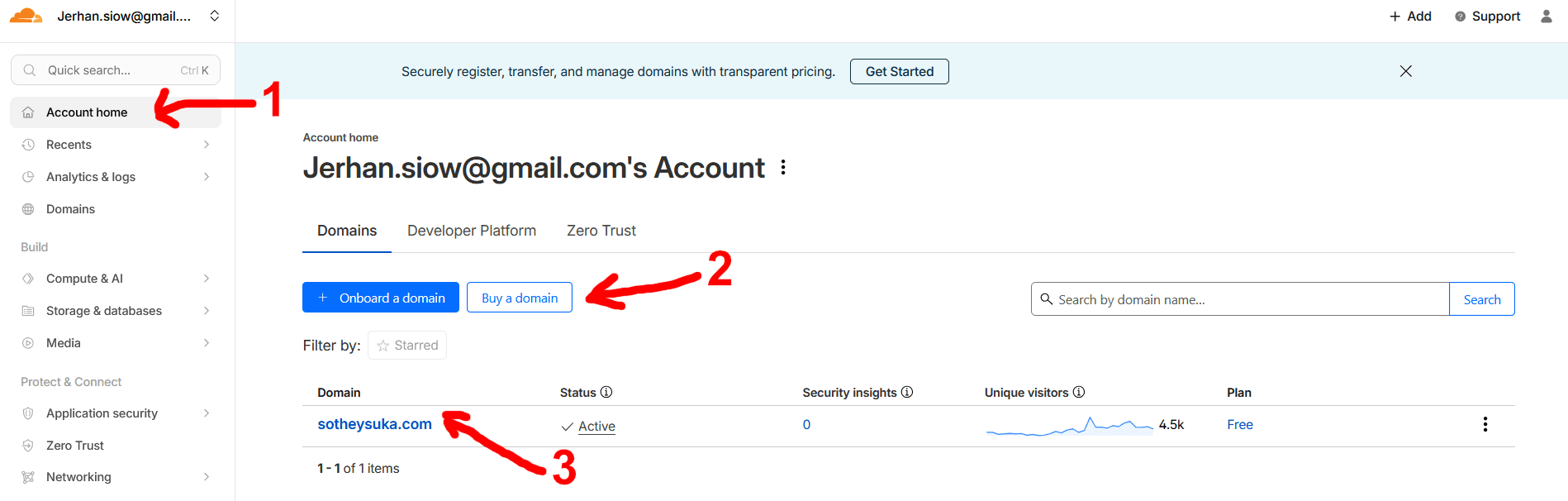
This step should be self-explanatory. One you are in, go to Account home if you are not there (1)
You should see the option to onboard a domain or buy a domain (2). If you plan to buy your domain from another registrar. Click the Onboard a domain button and there should be a fairly obvious input field that asks for your domain name, then 2 Name Server (NS) will be given to you which you have to copy and paste both into your domain registrar's dashboard. What this does is that when a user visits your website for example, Cloudflare would pick that website name up, and find out where your cloud is so that it retrieves and returns the content from your cloud.
If not, then no configuration of Name Server (NS) will be necessary. All the domain you onboarded/bought through Cloudflare will show up in (3). Note: you can have multiple domain in a single Cloudflare account, but you need to configure the security for each of the domains individually.
2. Rent a VPS
This is the one step I could not show or guide with. Because there are so many providers out there. And I could not be biased towards any provider which is why I encourage you to search for one online and rent it.
One important advice I would give is to pick an operating system (OS) from Linux distribution. This could be Debian, Ubuntu or any other options that is available from the cloud/VPS provider. Generally speaking, at least one Linux distribution will be available as the operating system (OS) is free to install and use.
Take note of the IP address of your VPS. You will need it later.
It is also at this step that you should set up your SSH keys to access your VPS. This is a much more secure way to access your VPS than using a password. If you are not sure how to do this, please search for a tutorial online. I would recommend using the command line to generate your SSH keys and copy the public key to your VPS. This is a very common practice and you will find plenty of tutorials online.
And also, your cloud/VPS provider should have the option for you to configure the firewall to secure your VPS.
What you have to do here is to keep port 80, 443 and 3000 open and have the rest closed.
3. Install Dokploy
This is another straightforward step. You can click the link below and follow the official installation guide:
Dokploy Installation Guide From Their Official Documentation
Alternatively, I have them summarized here:
Step 1: In your cloud/VPS provider, there should be an option to access your VPS via a console. The console will look similar to your Windows/Macbook terminal.
Step 2: Run the script from Dokploy installation guide:
curl -sSL https://dokploy.com/install.sh | shStep 3: Open your browser and navigate to:
http://your-ip-from-your-vps:3000Step 4: Create your admin account.
4. System Hardening
Click your domain in (3) and you will see the sidebar options change to this:
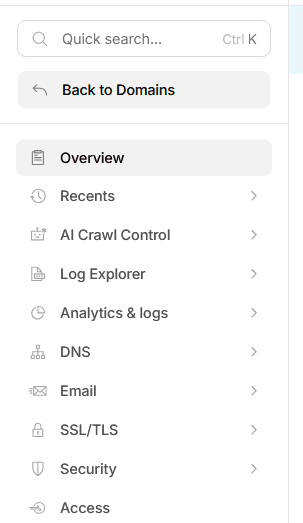
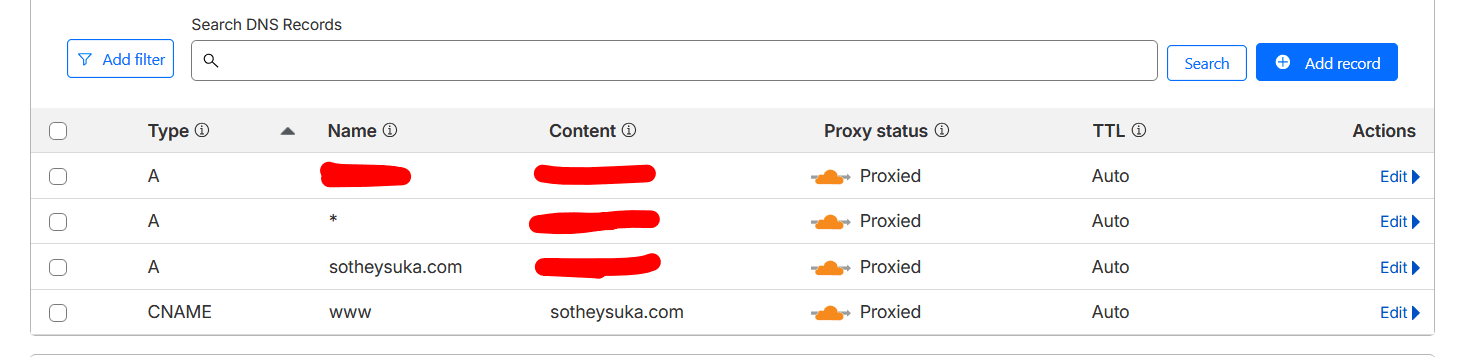
Click on the DNS option, then select Records. Set them by clicking the Add record button over on the right side. Make sure the Content for A records are pointing to your VPS IP address. As for the name, having the wildcard (*) will be helpful. And you can set another A record to use as subdomain for Dokploy. It can be anything such as mydokploy.coolwebsite.com.
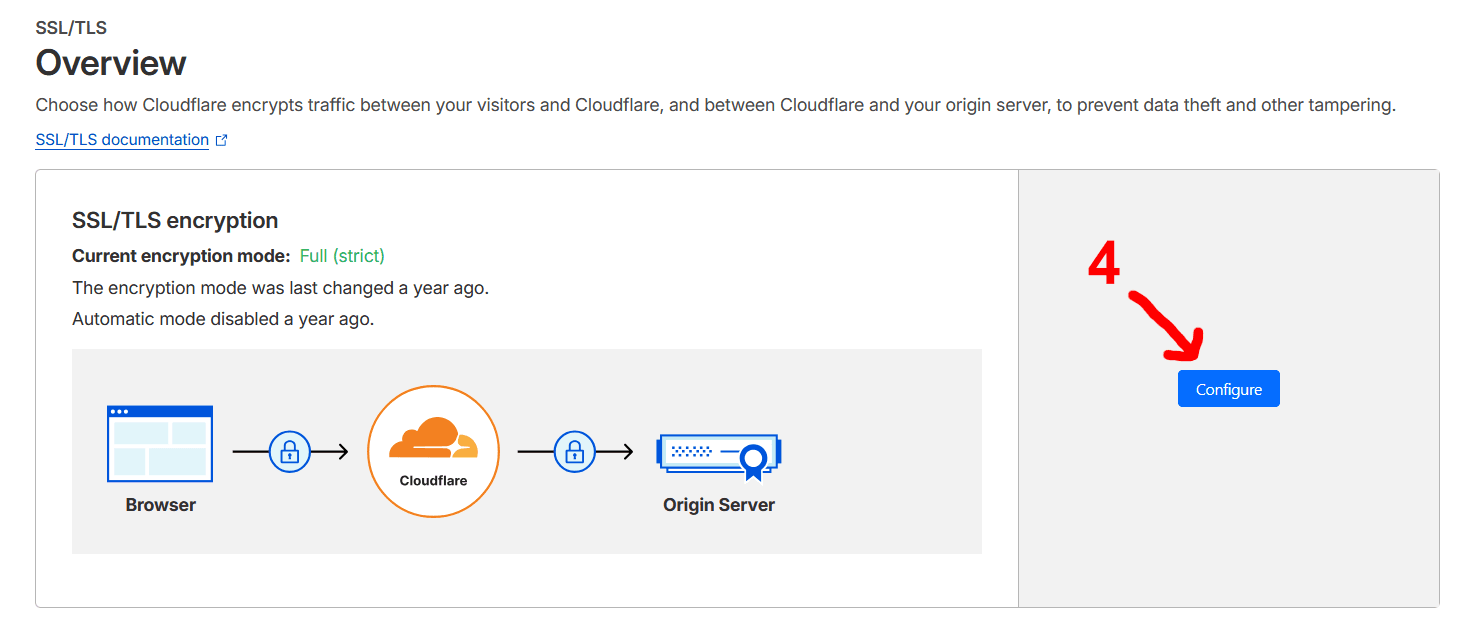
Once you are done, go to the sidebar again and select SSL/TLS option, then select Overview. Click the configure button as shown in (4), and set it to Custom SSL/TLS and select Full (Strict):
Now you can go back to your Dokploy instance
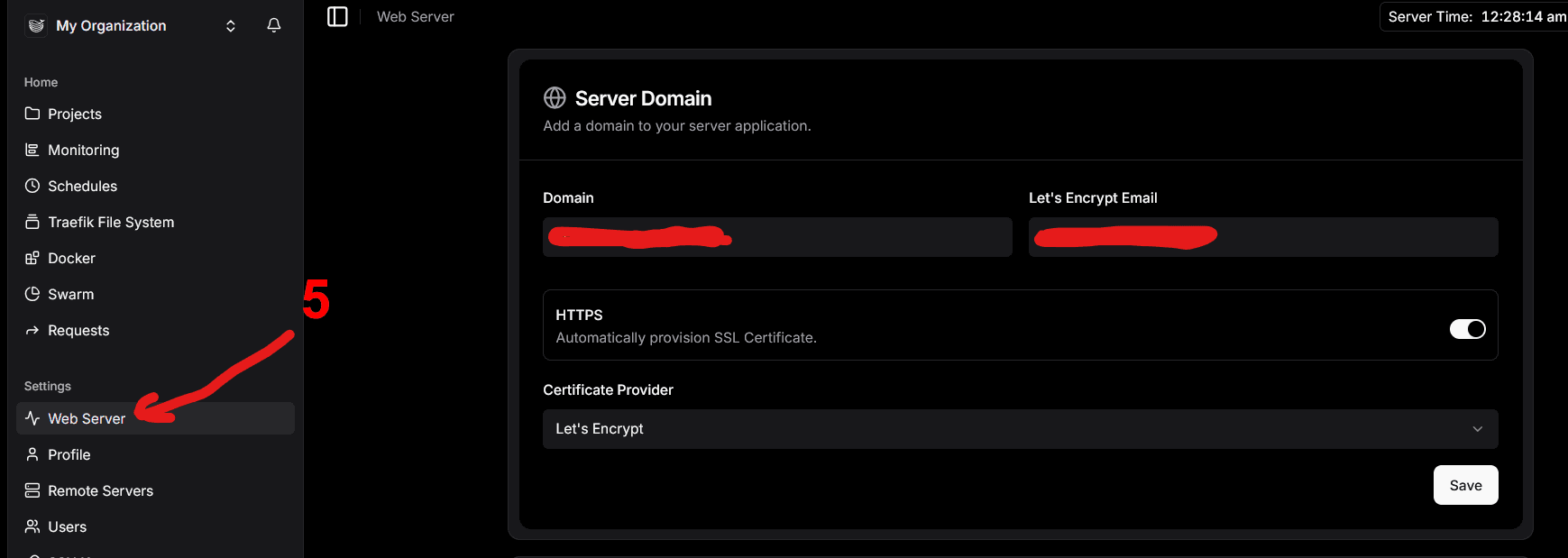
http://your-ip-from-your-vps:3000And configure your web server (5) to point to the domain you set in Cloudflare, for example: mydokploy.coolwebsite.com. Make sure to turn on HTTPS and add a Certificate Provider such as Let's Encrypt. This will automatically provision a certificate for your domain.
Finally, you can now disable public access to your IP address by running this command on your VPS console:
Conclusion
Although there are a lot of details that I skipped, they can be further explored by other experts in YouTube or written guides, such as adding your website with Docker and building the image with as little friction as possible.
Ultimately, the aim of this guide is to help me retrace the steps taken if one day I were to forgot how to self-host this website.